विज्ञापन / Advertisement
MS Word Help Tab
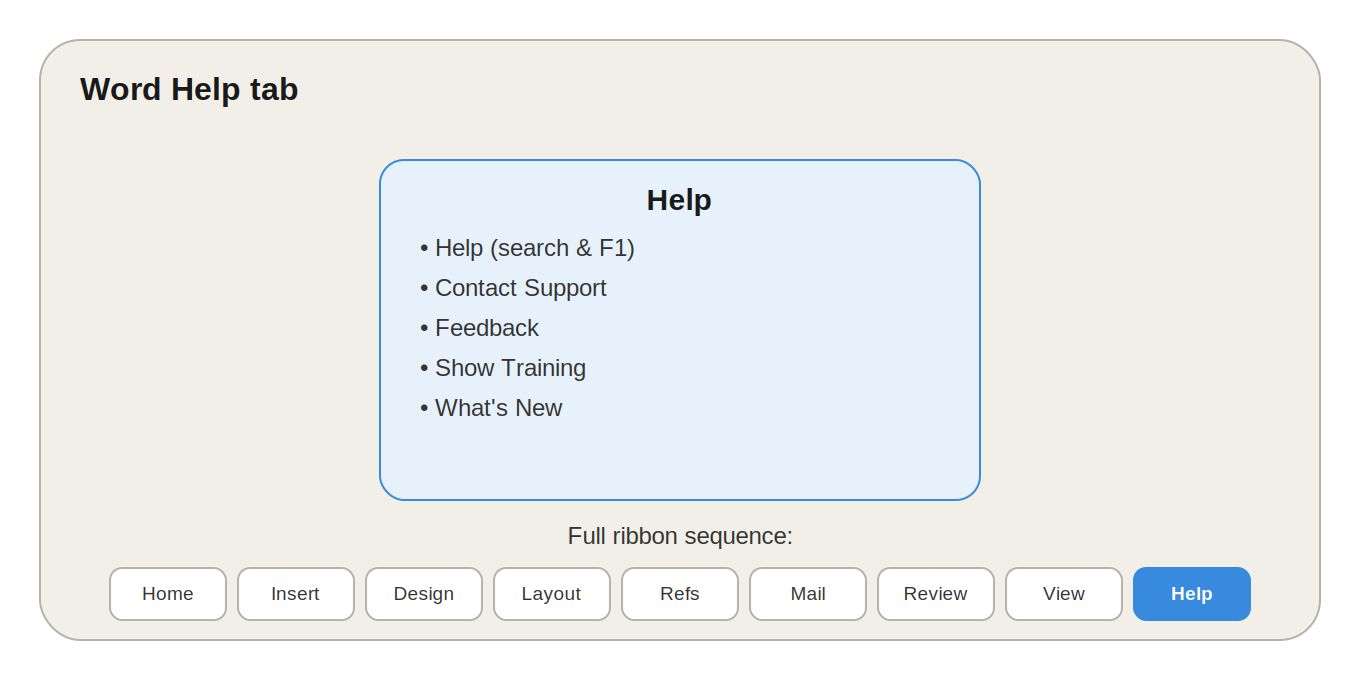
Help Tab Microsoft Word के Ribbon का अंतिम प्रमुख Tab माना जाता है, खासकर Microsoft 365 के नए versions में। इसका मुख्य उद्देश्य है — Word से जुड़ी Help, Training, Support, Feedback और New Features की जानकारी एक ही जगह देना, ताकि किसी problem को solve करने या feature सीखने के लिए अलग से browser न खोलना पड़े।
📌 ध्यान दें: Word के अलग-अलग versions — Desktop, Web और Microsoft 365 — में Help Tab के options की position या नाम थोड़ा अलग हो सकता है।
Help Tab में मुख्य रूप से एक Help Group होता है, जिसमें ये 5 options शामिल हैं:
- Help
- Contact Support
- Feedback
- Show Training
- What's New
1. Help — Word से जुड़ी हर जानकारी
Word के किसी भी feature, command या problem की जानकारी खोजने के लिए। इससे Word Features, How-to Guides, Troubleshooting और Formatting Help — सब कुछ search किया जा सकता है।
Shortcut: F1
उदाहरण: Table of Contents बनाना नहीं आता? Help में Table of Contents search करें और तुरंत जानकारी पाएं।
2. Contact Support — सीधे Microsoft से संपर्क
जब सामान्य Help Search से समस्या हल न हो, तब Contact Support से Microsoft की टीम से जुड़ा जा सकता है। यह इनके लिए उपयोगी है:
- Account Problems
- Licensing Problems
- Microsoft 365 Issues
- Sync Problems
- Subscription-related Problems
उदाहरण: Microsoft 365 का License होते हुए भी Word activate नहीं हो रहा — तो Contact Support काम आता है।
3. Feedback — अपना अनुभव Microsoft तक पहुँचाएं
Bug report करने, कोई feature सही से काम न करने की जानकारी देने, नया feature सुझाने या अच्छे experience के बारे में बताने के लिए। कुछ versions में Feedback के साथ Screenshot भी भेजा जा सकता है।
उदाहरण: कोई option बार-बार error दे रहा है — तो Feedback से Microsoft को बताया जा सकता है।
4. Show Training — Word सीखने के लिए Tutorials
Microsoft के official Training Materials और Tutorials तक पहुँच देता है, जिसमें ये topics शामिल होते हैं:
- Formatting
- Tables
- Mail Merge
- Page Layout
- Collaboration
- Advanced Word Features
उदाहरण: एक beginner Word सीखना चाहता है — तो Show Training से उपलब्ध tutorials काम आएंगे।
5. What's New — नए Features की जानकारी
Word में हाल ही में जोड़े गए New Features और Updates की जानकारी देता है — खासकर Microsoft 365 users के लिए उपयोगी, क्योंकि यहाँ नए features समय-समय पर आते रहते हैं।
उदाहरण: Update के बाद कोई नया option दिखा? What's New में उसकी जानकारी मिल सकती है।
Quick Revision — Help Tab के सभी Options
| Option | मुख्य कार्य |
|---|---|
| Help | Word की Help और Documentation खोजना |
| Contact Support | Microsoft Support से संपर्क करना |
| Feedback | Microsoft को सुझाव या समस्या भेजना |
| Show Training | Word की Training और Tutorials देखना |
| What's New | नए Features और Updates देखना |
Practical Uses — कब कौन-सा Option इस्तेमाल करें
| ज़रूरत | कौन-सा Option |
|---|---|
| किसी Feature की जानकारी चाहिए | Help |
| Technical/Account समस्या है | Contact Support |
| Bug report करना है | Feedback |
| Word सीखना है | Show Training |
| Latest changes जानने हैं | What's New |
Help Tab vs Review Tab
| Help Tab | Review Tab |
|---|---|
| Help और Support के लिए | Document Review के लिए |
| Help | Spelling & Grammar |
| Contact Support | Comments |
| Feedback | Track Changes |
| Show Training | Accept/Reject Changes |
| What's New | Compare |
| Support Resources | Protect |
💡 याद रखें: Help = सीखना, समस्या हल करना और Support पाना। Review = Document को Check और Review करना।
MS Word Ribbon का पूरा Sequence
MS Word के सभी प्रमुख Tabs इस क्रम में आते हैं:
Home → Insert → Design → Layout → References → Mailings → Review → View → Help
| Tab | मुख्य कार्य |
|---|---|
| Home | Text Formatting और Basic Editing |
| Insert | Tables, Pictures, Shapes, Header/Footer इंसर्ट करना |
| Design | Document की Overall Design और Appearance |
| Layout | Page Setup, Margins, Orientation, Columns |
| References | TOC, Footnotes, Citations, Bibliography |
| Mailings | Mail Merge और Mailing-related Tasks |
| Review | Spelling, Comments, Track Changes, Compare |
| View | Document देखने, Zoom और Window Management |
| Help | Help, Training, Support और Feedback |
💡 याद रखने की Trick: "काम करो (Home) → चीजें जोड़ो (Insert) → Design करो → Page सेट करो (Layout) → Reference दो (References) → Mail भेजो (Mailings) → Review करो → View करो → Help लो।"
MS Word के सभी Tabs का One-Liner Revision
- Home → Text और Basic Editing
- Insert → Content Insert करना
- Design → Document Design
- Layout → Page और Paragraph Layout
- References → References और Citations
- Mailings → Mail Merge
- Review → Checking और Reviewing
- View → Document Viewing और Navigation
- Help → Help और Support
पूरा One-Liner: Home से Document Edit करें → Insert से Content जोड़ें → Design से सजाएँ → Layout से Page सेट करें → References से Reference जोड़ें → Mailings से Mail Merge करें → Review से Check करें → View से देखें → Help से सहायता लें।
10 One-Liner Question-Answer (Exam के लिए Important)
- Help Tab का मुख्य उद्देश्य क्या है? → Word की Help और Support उपलब्ध कराना।
- Help खोलने की Shortcut क्या है? → F1।
- Contact Support किसलिए है? → Microsoft Support तक पहुँचने के लिए।
- Feedback किसलिए है? → Microsoft को suggestion या problem report करने के लिए।
- Show Training क्या देता है? → Word सीखने के लिए Training और Tutorials।
- What's New क्या दिखाता है? → नए Features और Updates की जानकारी।
- क्या सभी versions में Help Tab समान होता है? → नहीं, Desktop/Web/365 में अलग हो सकता है।
- Ribbon का पहला Tab कौन-सा है? → Home।
- Ribbon का आमतौर पर अंतिम प्रमुख Tab कौन-सा माना जाता है? → Help।
- MS Word के प्रमुख 9 Tabs कौन-से हैं? → Home, Insert, Design, Layout, References, Mailings, Review, View, Help।
अक्सर पूछे जाने वाले सवाल (FAQ)
1. MS Word में Help Tab का क्या काम है? Word की Help, Training, Support, Feedback और New Features की जानकारी प्राप्त करने के लिए।
2. MS Word में Help खोलने की Shortcut Key क्या है? F1।
3. Contact Support का क्या उपयोग है? Microsoft की technical, account, licensing या अन्य support-related समस्याओं में सहायता पाने के लिए।
4. Feedback option का क्या काम है? Microsoft को suggestion, problem report या feature request भेजने के लिए।
5. Show Training क्या है? Word के विभिन्न features सीखने के लिए tutorials और training resources।
6. What's New option क्या दिखाता है? Word में हाल ही में जोड़े गए नए features और updates की जानकारी।
7. Help Tab किन users के लिए उपयोगी है? Beginner से लेकर Advanced users तक — सभी के लिए, क्योंकि इससे Help, Training और Support एक साथ मिलते हैं।
8. क्या सभी Word versions में Help Tab समान होता है? नहीं — Desktop, Web और अलग-अलग Microsoft 365 versions/builds में options की position या availability अलग हो सकती है।
9. Help Tab और Review Tab में क्या अंतर है? Help Tab सहायता और Support के लिए है, जबकि Review Tab document की Spelling, Comments, Track Changes जैसी checking tasks के लिए है।
10. MS Word Ribbon का सामान्य अंतिम प्रमुख Tab कौन-सा है? Microsoft 365 के नए Word interface में Help को अंतिम प्रमुख Tab माना जाता है।
11. MS Word के प्रमुख Ribbon Tabs कौन-कौन से हैं? Home, Insert, Design, Layout, References, Mailings, Review, View और Help।
12. Word में किसी feature की जानकारी कैसे पाएं? Help option खोलकर उस feature का नाम search करें।
निष्कर्ष (Conclusion)
Help Tab MS Word का वह टूल है जो सीखने, समस्या सुलझाने और Microsoft तक अपनी बात पहुँचाने का सबसे आसान रास्ता देता है। चाहे आप एक नए feature की जानकारी चाहते हों, कोई technical दिक्कत हो, या बस यह जानना हो कि Word में हाल ही में क्या नया आया है — Help Tab के 5 options आपकी हर ज़रूरत को कवर करते हैं। और अगर आप पूरे MS Word Ribbon को समझना चाहते हैं, तो याद रखें: Home → Insert → Design → Layout → References → Mailings → Review → View → Help।
विज्ञापन / Advertisement
💬 Leave a Comment & Rating