विज्ञापन / Advertisement
MS Word View Tab
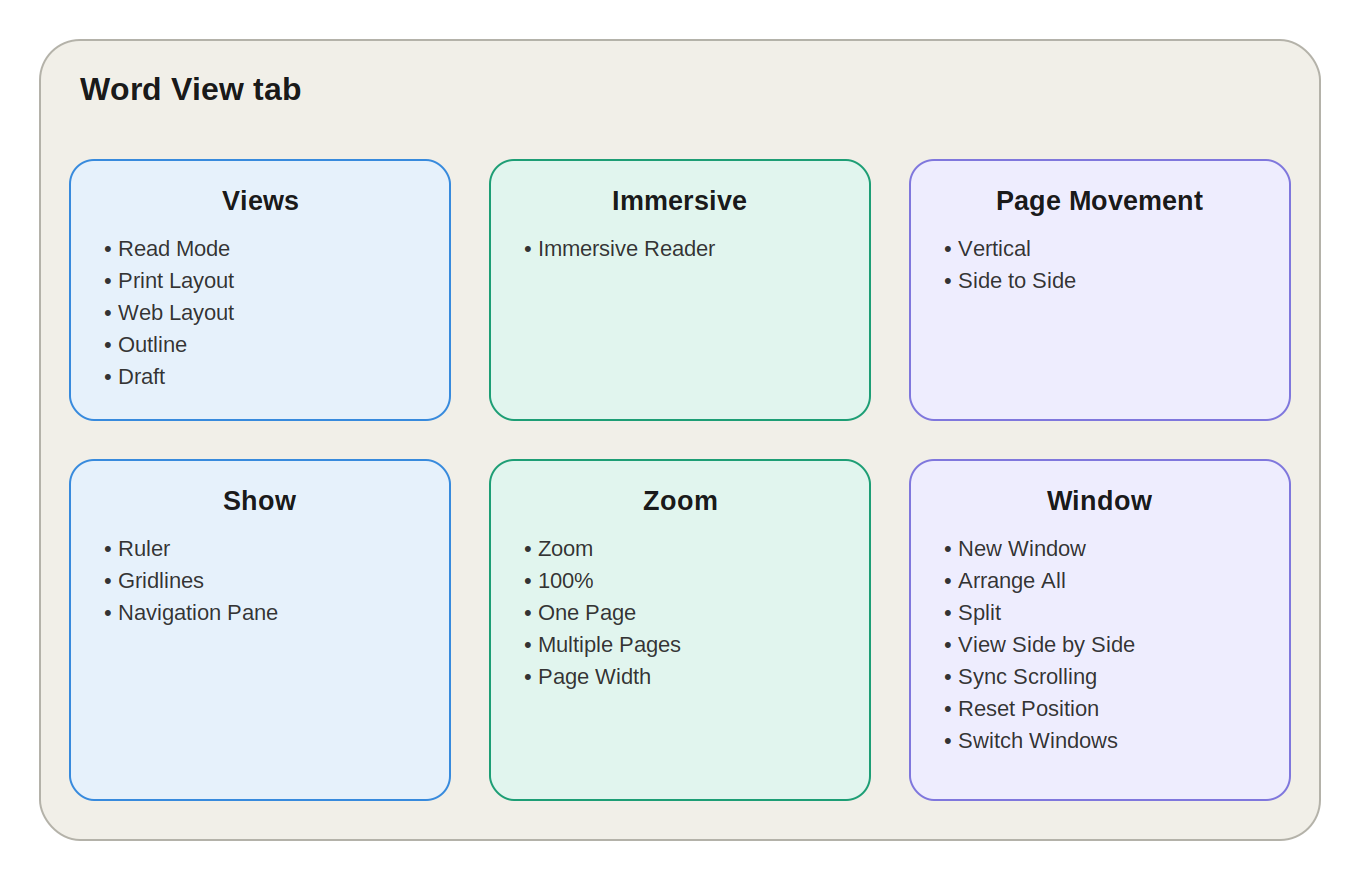
MS Word Ribbon में View Tab, Review Tab के बाद आता है। इसका मुख्य काम document के content को बदलना नहीं, बल्कि यह तय करना है कि document को स्क्रीन पर कैसे देखा, navigate किया और manage किया जाए।
View Tab की मदद से Document Views, Zoom, Ruler, Gridlines, Navigation Pane और Multiple Windows को मैनेज किया जा सकता है।
View Tab के 6 मुख्य Groups हैं:
- Views
- Immersive
- Page Movement
- Show
- Zoom
- Window
💡 याद रखने की Trick: "देखो → पढ़ो → Page चलाओ → चीजें दिखाओ → Zoom करो → Windows संभालो" (Views → Immersive → Page Movement → Show → Zoom → Window)
1. Views Group — Document को कैसे देखें
| View | कैसा दिखता है | कब इस्तेमाल करें |
|---|---|---|
| Read Mode | Clean, distraction-free interface | Long documents पढ़ने के लिए, book की तरह pages देखने के लिए |
| Print Layout (Default) | जैसा document Print होने पर दिखेगा — Margins, Page Breaks, Header/Footer सहित | Printing से पहले layout check करने के लिए |
| Web Layout | Webpage जैसा, बिना Page Breaks, continuous scroll | Content को web जैसी screen पर देखने के लिए |
| Outline | Heading Levels के आधार पर document की structure | Chapters reorder करने, Sections collapse/expand करने के लिए |
| Draft | Simplified view, कम visual clutter (Header/Footer छिपे हुए) | तेज़ text editing के लिए |
2. Immersive Group
Immersive Reader
Readability और Accessibility बेहतर बनाने वाला एक विशेष reading environment — इसमें Text Spacing, Column Width, Page Color और Read Aloud जैसी सुविधाएँ मिलती हैं।
💡 इस्तेमाल: छोटे text या crowded page को पढ़ने में दिक्कत होने पर।
3. Page Movement Group
Print Layout View में multi-page document scroll करने का तरीका तय करता है।
| Option | तरीका |
|---|---|
| Vertical | Pages ऊपर से नीचे की ओर scroll होते हैं (सबसे common) |
| Side to Side | Pages Left → Right direction में move होते हैं, book flip जैसा अनुभव |
4. Show Group — Visual Tools को Show/Hide करना
| Feature | काम | Shortcut |
|---|---|---|
| Ruler | Margin, Indent और Tab Stop सेट करने के लिए measurement scale दिखाता है | — |
| Gridlines | Images, Shapes, Text Boxes जैसे objects को accurately align करने के लिए हल्की grid lines (यह print नहीं होतीं) | — |
| Navigation Pane | Headings, page thumbnails और search results दिखाकर किसी specific section पर तुरंत जाने में मदद करता है | Ctrl + F |
💡 Example: 200-page document में "Operating System" heading ढूंढनी है? Navigation Pane में search करें और सीधे उस section पर पहुँचें।
5. Zoom Group
⚠️ ज़रूरी बात: Zoom सिर्फ screen display बदलता है — Document की actual printing size नहीं बदलती।
| Option | काम |
|---|---|
| Zoom | Custom percentage सेट करना (50%, 75%, 100%, 150%, 200% आदि) |
| 100% | Document को actual size में वापस लाना |
| One Page | पूरे एक page को screen पर fit करना — overall layout check करने के लिए |
| Multiple Pages | एक साथ कई pages दिखाना — document flow या printing preview के लिए |
| Page Width | Page की width को screen की available width में fit करना |
6. Window Group — Multiple Documents/Windows मैनेज करना
| Feature | काम |
|---|---|
| New Window | उसी document की एक दूसरी window खोलता है — एक हिस्से (जैसे Chapter 1) और दूसरे हिस्से (Chapter 10) को अलग-अलग windows में देखने के लिए |
| Arrange All | सभी open Word windows को स्क्रीन पर एक साथ arrange करता है |
| Split | एक ही document की window को दो independently scrollable panes में बाँटता है — ऊपर Introduction, नीचे Conclusion देखने जैसा |
| View Side by Side | दो अलग documents को एक साथ side-by-side दिखाता है — comparison के लिए बेहद उपयोगी |
| Synchronous Scrolling | Side-by-side खुले दोनों documents को एक साथ scroll करता है, ताकि corresponding position आसानी से compare हो |
| Reset Window Position | Side-by-side windows की positioning को default/equal arrangement में वापस लाता है |
| Switch Windows | सभी open Word documents की list दिखाकर उनके बीच जल्दी switch करने देता है |
Quick Revision — View Tab के सभी Groups
| Group | मुख्य कार्य |
|---|---|
| Views | Document को अलग-अलग Views में देखना |
| Immersive | Reading और Accessibility बेहतर करना |
| Page Movement | Pages को Vertical या Side to Side देखना |
| Show | Ruler, Gridlines और Navigation Pane दिखाना |
| Zoom | Document को छोटा-बड़ा दिखाना |
| Window | Multiple Documents/Windows manage करना |
View Tab के Important Shortcuts
| Shortcut | कार्य |
|---|---|
Ctrl + F |
Navigation Pane / Search |
Ctrl + Home |
Document के शुरुआत में जाना |
Ctrl + End |
Document के अंत में जाना |
Page Up |
एक screen ऊपर जाना |
Page Down |
एक screen नीचे जाना |
Ctrl + Page Up |
Previous page/section पर जाना |
Ctrl + Page Down |
Next page/section पर जाना |
Practical Example — 150-Page Exam Notes File
| ज़रूरत | कौन-सा Feature इस्तेमाल करें |
|---|---|
| Reading के लिए | Read Mode |
| Normal editing के लिए | Print Layout |
| Chapters reorder करने के लिए | Outline |
| Fast text editing के लिए | Draft |
| Headings पर जल्दी जाने के लिए | Navigation Pane |
| पूरा page देखने के लिए | One Page |
| कई pages एक साथ देखने के लिए | Multiple Pages |
| दो versions compare करने के लिए | View Side by Side |
| एक ही document के दो sections देखने के लिए | Split |
View Tab vs Review Tab
| View Tab | Review Tab |
|---|---|
| Document को देखने का तरीका कंट्रोल करता है | Document की checking/review करता है |
| Zoom | Spelling & Grammar |
| Ruler | Comments |
| Gridlines | Track Changes |
| Navigation Pane | Accept/Reject Changes |
| Multiple Windows | Compare |
| Page Movement | Protect |
💡 याद रखें: View = Document को कैसे देखना है, Review = Document को कैसे Check/Review करना है।
10 One-Liner Question-Answer
- View Tab का मुख्य उद्देश्य क्या है? → Document को देखने और navigate करने का तरीका कंट्रोल करना।
- Word का सबसे common/default view कौन-सा है? → Print Layout।
- Read Mode किसलिए उपयोगी है? → Distraction-free reading के लिए।
- Outline View किसके लिए उपयोगी है? → Long documents की headings और structure मैनेज करने के लिए।
- Navigation Pane खोलने की Shortcut क्या है? → Ctrl + F।
- Ruler का उपयोग किसलिए होता है? → Indent और Tab Stops सेट करने में।
- Gridlines किसमें मदद करती हैं? → Objects को accurately align करने में।
- Zoom किसे प्रभावित करता है? → सिर्फ screen display को, printing size को नहीं।
- Split option क्या करता है? → एक ही document को दो panes में देखने देता है।
- Synchronous Scrolling क्या करता है? → दो side-by-side documents को एक साथ scroll करता है।
FAQ:
1. MS Word में View Tab का क्या काम है? Document को अलग-अलग तरीके से देखने, Zoom करने, Navigation करने और Windows मैनेज करने के लिए।
2. View Tab में कितने मुख्य Groups होते हैं? 6 — Views, Immersive, Page Movement, Show, Zoom और Window।
3. Print Layout क्या है? वह View जिसमें document का layout लगभग वैसा ही दिखता है जैसा Print होने पर दिखेगा।
4. Read Mode का क्या उपयोग है? Document को distraction-free तरीके से पढ़ने के लिए।
5. Outline View किसके लिए उपयोगी है? Long documents की headings और structure व्यवस्थित करने के लिए।
6. Navigation Pane खोलने का Shortcut क्या है? Ctrl + F।
7. Zoom का क्या काम है? Document को screen पर बड़ा-छोटा दिखाना — actual printing size नहीं बदलती।
8. Split option क्या करता है? एक ही document window को दो independently scrollable panes में बाँटता है।
9. View Side by Side का क्या उपयोग है? दो अलग documents को एक साथ देखकर compare करने के लिए।
10. Synchronous Scrolling क्या है? Side-by-side खुले दो documents को एक साथ scroll करने की सुविधा।
11. Gridlines का उपयोग किसलिए होता है? Images, Shapes और अन्य objects को accurately align करने के लिए।
12. क्या Zoom से Document की Printing Size बदलती है? नहीं — Zoom सिर्फ screen पर display size बदलता है।
निष्कर्ष (Conclusion)
View Tab MS Word का वह टूल है जो content को नहीं बदलता, बल्कि आपके काम करने के अनुभव को बेहतर बनाता है। Reading के लिए Read Mode, editing के लिए Draft, structure मैनेज करने के लिए Outline, और comparison के लिए Split या View Side by Side — सही View चुनकर आप किसी भी document पर तेज़ी से और ज़्यादा आराम से काम कर सकते हैं।
विज्ञापन / Advertisement
💬 Leave a Comment & Rating