विज्ञापन / Advertisement
MS Word Review Tab
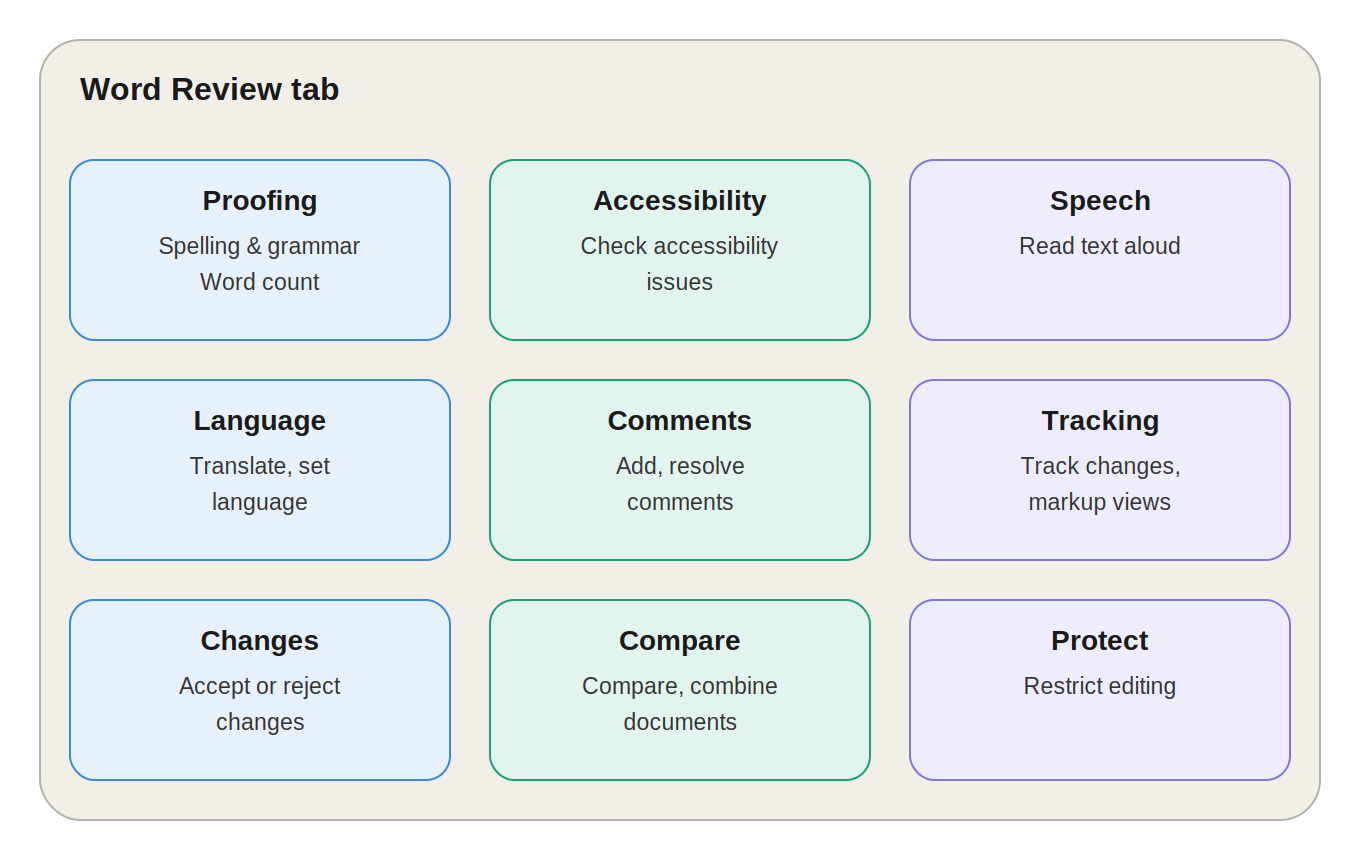
MS Word Ribbon में Review Tab, Mailings Tab के बाद आता है। इसका मुख्य काम document की checking, proofreading, editing, collaboration और protection है।
इस Tab की मदद से Spelling-Grammar check करना, Word Count देखना, Comments जोड़ना, Track Changes करना, अलग-अलग versions को Compare करना, Translation करना, Accessibility check करना और document को editing से Protect करना — यह सब संभव है।
Review Tab के मुख्य Groups हैं:
- Proofing
- Accessibility
- Speech
- Language
- Comments
- Tracking
- Changes
- Compare
- Protect
1. Proofing Group
Document में writing-related mistakes पकड़ने के लिए।
| Feature | काम | Shortcut |
|---|---|---|
| Spelling & Grammar | Spelling और grammar की गलतियाँ पकड़ता है और corrections सुझाता है | F7 |
| Thesaurus | Selected word के Synonyms और related words दिखाता है | — |
| Word Count | Pages, Words, Characters, Paragraphs, Lines की संख्या बताता है (selected text का भी) | — |
| Editor (Microsoft 365) | Grammar, Spelling, Clarity, Conciseness, Style और Tone जैसी advanced writing checks करता है | — |
2. Accessibility Group
Check Accessibility
Document को accessibility problems के लिए scan करता है — जैसे images में missing Alt Text, unclear headings या poor structure। यह उन users के लिए ज़रूरी है जो Screen Reader या Assistive Technology इस्तेमाल करते हैं।
📌 Exam Point: Accessibility Checker का उद्देश्य document को ज़्यादा से ज़्यादा users के लिए accessible बनाना है।
3. Speech Group
Read Aloud
Document के text को आवाज़ में पढ़कर सुनाता है — Proofreading, Reading Practice और Accessibility के लिए उपयोगी।
💡 Practical Use: 20-page report को सुनकर spelling या sentence-flow की गलतियाँ पकड़ना आसान हो जाता है।
4. Language Group
| Feature | काम |
|---|---|
| Translate | Selected text या पूरे document को दूसरी भाषा में translate करता है (जैसे English ↔ Hindi) |
| Language | Selected text के लिए Proofing Language सेट करता है, जिससे सही dictionary और grammar rules लागू होते हैं |
5. Comments Group
बिना original text बदले feedback या notes देने के लिए।
| Feature | काम | Shortcut |
|---|---|---|
| New Comment | Selected text पर comment जोड़ता है | Ctrl + Alt + M |
| Delete | Comment हटाता है | — |
| Previous/Next | एक comment से दूसरे पर navigate करता है | — |
| Show Comments | Comments pane को show/hide करता है | — |
| Resolve | Comment thread को addressed/closed mark करता है (delete नहीं करता) | — |
उदाहरण: किसी sentence में correction चाहिए तो उसे delete करने की बजाय comment में लिखें: "Please verify this information." — इससे original content सुरक्षित रहता है।
6. Tracking Group
Collaborative editing के लिए बेहद important।
Track Changes
Document में हुए Insertions, Deletions और Formatting Changes को record करता है।
Shortcut: Ctrl + Shift + E
उदाहरण: दो लोग एक report edit कर रहे हैं — Track Changes ON होने पर हर बदलाव visible रहता है, ताकि reviewer देख सके कि क्या बदला गया।
Display for Review — Views
| View | दिखता कैसे है |
|---|---|
| Simple Markup | Document clean दिखता है, changes के indicators margin में |
| All Markup | सभी tracked changes detail में दिखते हैं |
| No Markup | Document ऐसा दिखता है जैसे changes accept हो गए (पर असल में accept नहीं हुए) |
| Original | Document का original version, जैसे सभी changes reject हों |
Show Markup और Reviewing Pane
Show Markup से यह चुना जा सकता है कि Comments, Insertions, Deletions आदि में से क्या दिखाना है। Reviewing Pane सभी tracked changes और comments की एक organized list अलग pane में दिखाता है, जिससे step-by-step review आसान होता है।
7. Changes Group
Tracked changes को Accept या Reject करने के लिए।
| Option | काम |
|---|---|
| Accept | Change को permanently document में लागू करता है |
| Reject | Change को हटाकर original content restore करता है |
| Previous/Next | Changes के बीच एक-एक करके navigate करता है |
8. Compare Group
Compare
दो document versions के बीच differences identify करके एक नए document में दिखाता है — तब उपयोगी जब Track Changes पहले से ON नहीं था।
उदाहरण: Report_V1.docx और Report_V2.docx के बीच अंतर पहचानने के लिए।
Combine
कई reviewers के अलग-अलग copies में मौजूद changes और comments को एक master document में consolidate करता है।
उदाहरण: तीन reviewers (A, B, C) के अलग-अलग edits को Combine से एक जगह लाना।
9. Protect Group
| Feature | काम |
|---|---|
| Block Authors | Shared document में specific co-authors को किसी section को edit करने से रोकता है |
| Restrict Editing | Editing permissions control करता है — केवल Comments, केवल Form Fields fill करना, या पूरी तरह Read-only; ज़रूरत पर Password भी लगाया जा सकता है |
Practical Example — Project Report Review Workflow
F7से Spelling & Grammar check करें।- Word Count देखें।
- Check Accessibility से document scan करें।
- Reviewer feedback के लिए New Comment जोड़ें।
- Collaborative editing के लिए Track Changes ON करें।
- Reviewer के changes को Accept/Reject करें।
- पुराने-नए versions में फर्क देखने के लिए Compare करें।
- Final document को unauthorized editing से बचाने के लिए Restrict Editing लगाएं।
इस तरह Review Tab document की quality, collaboration और security — तीनों को बेहतर बनाता है।
Quick Revision — Review Tab के सभी Groups
| Group | मुख्य काम |
|---|---|
| Proofing | Spelling, Grammar, Thesaurus, Word Count |
| Accessibility | Accessibility issues check करना |
| Speech | Read Aloud |
| Language | Translate और Proofing Language |
| Comments | Comments और Feedback |
| Tracking | Track Changes और Markup |
| Changes | Accept/Reject Changes |
| Compare | Documents compare/combine करना |
| Protect | Editing restrictions और protection |
Review Tab vs Mailings Tab
| Review Tab | Mailings Tab |
|---|---|
| Document Review के लिए | Mail Merge के लिए |
| Spelling & Grammar | Letters |
| Comments | Envelopes |
| Track Changes | Labels |
| Compare | Email Messages |
| Accept/Reject | Recipient List |
| Restrict Editing | Finish & Merge |
Important Keyboard Shortcuts
| Shortcut | Function |
|---|---|
F7 |
Spelling & Grammar |
Ctrl + Alt + M |
New Comment |
Ctrl + Shift + E |
Track Changes |
Alt + Shift + X |
Mark Index Entry |
Alt + Shift + I |
Mark Citation |
10 One-Liner Question-Answer
- Review Tab का मुख्य उपयोग क्या है? → Proofreading, Reviewing, Collaboration और Protection।
- Spelling & Grammar की Shortcut क्या है? → F7।
- Thesaurus क्या करता है? → Synonyms और related words ढूंढता है।
- Word Count क्या दिखाता है? → Words, Pages, Characters आदि की संख्या।
- New Comment की Shortcut क्या है? → Ctrl + Alt + M।
- Track Changes की Shortcut क्या है? → Ctrl + Shift + E।
- Track Changes क्या करता है? → Insertions, Deletions और Formatting Changes record करता है।
- Accept और Reject में क्या फर्क है? → Accept change लागू करता है, Reject उसे हटाता है।
- Compare किसलिए इस्तेमाल होता है? → दो document versions के अंतर पहचानने के लिए।
- Restrict Editing क्या करता है? → Document की editing permissions को control करता है।
FAQ:
1. MS Word में Review Tab का उपयोग किसलिए किया जाता है? Document की Proofreading, Editing, Comments, Track Changes, Comparison और Protection के लिए।
2. Spelling & Grammar की Shortcut Key क्या है? F7।
3. New Comment की Shortcut Key क्या है? Ctrl + Alt + M।
4. Track Changes की Shortcut Key क्या है? Ctrl + Shift + E — Track Changes को ON/OFF करने के लिए।
5. Track Changes क्या है? यह document में हुए Insertions, Deletions और Formatting Changes को record और display करता है।
6. Accept और Reject में क्या अंतर है? Accept tracked change को document में लागू करता है, जबकि Reject उस change को हटाकर original content restore करता है।
7. Compare का क्या उपयोग है? दो document versions के बीच differences पहचानने के लिए।
8. Restrict Editing क्या है? यह users को केवल allowed प्रकार की editing की permission देता है और unwanted changes रोकता है।
9. Thesaurus का क्या उपयोग है? Selected word के Synonyms और related words खोजने के लिए।
10. Check Accessibility का क्या काम है? Document में ऐसी problems पहचानना जो Screen Reader या Assistive Technology इस्तेमाल करने वाले users के लिए difficult हो सकती हैं।
निष्कर्ष (Conclusion)
Review Tab MS Word का वह टूल है जो किसी भी document को publish, submit या share करने से पहले उसकी accuracy, clarity और सुरक्षा सुनिश्चित करता है। चाहे अकेले काम कर रहे हों या team के साथ collaborate कर रहे हों — Spelling check से लेकर Track Changes और Restrict Editing तक, Review Tab की सही समझ आपके documents को ज़्यादा professional और error-free बनाती है।
विज्ञापन / Advertisement
💬 Leave a Comment & Rating