विज्ञापन / Advertisement
PowerPoint Home Tab
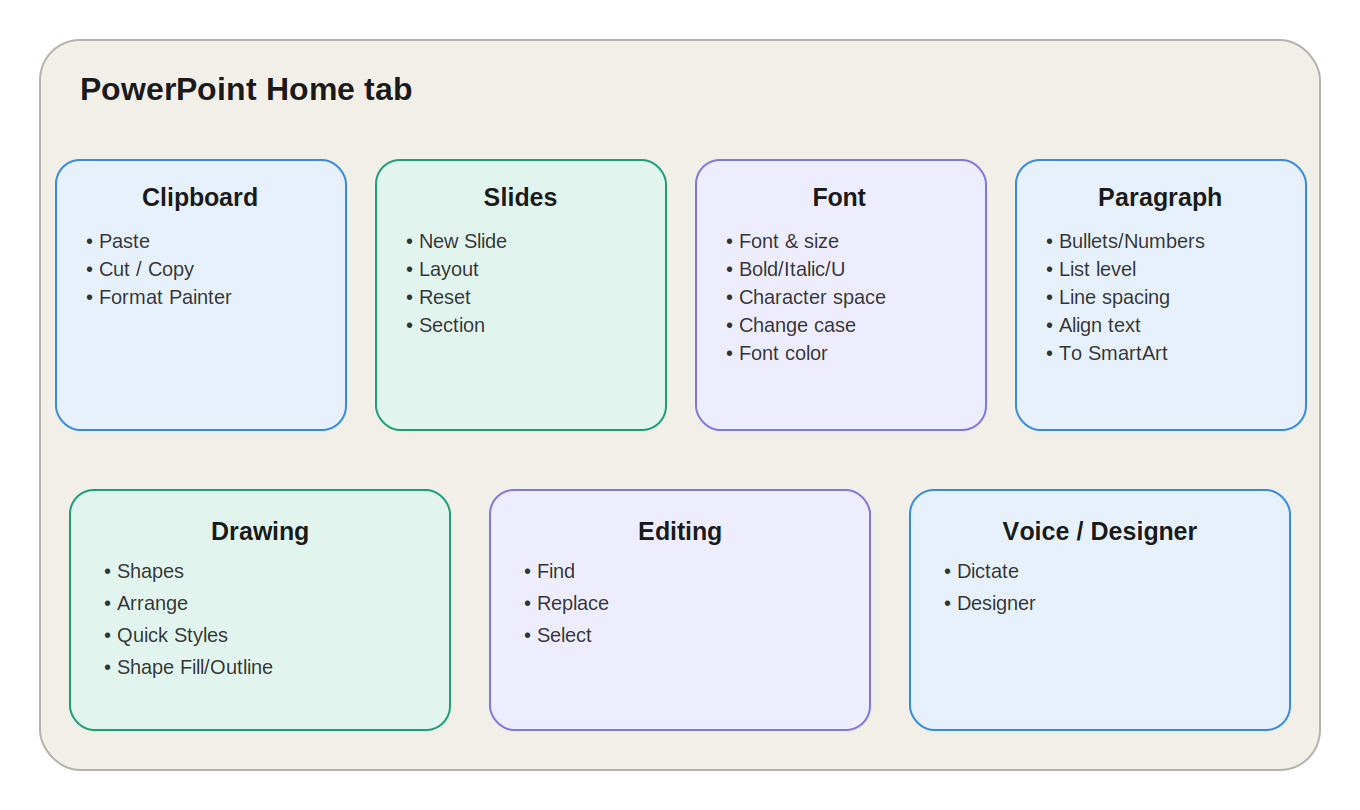
MS PowerPoint का Home Tab Ribbon का सबसे महत्वपूर्ण और सबसे अधिक उपयोग किया जाने वाला Tab है। इसका उपयोग Presentation में New Slide बनाना, Text Formatting, Paragraph Formatting, Shapes, Copy-Paste और Basic Editing जैसे सामान्य कार्यों के लिए किया जाता है।
PowerPoint में Home Tab का मुख्य focus Slides और Slide Content को manage करना है।
Home Tab में मुख्य रूप से 7 Groups होते हैं:
- Clipboard
- Slides
- Font
- Paragraph
- Drawing
- Editing
- Voice / Designer — Microsoft 365 में उपलब्ध अतिरिक्त features
1. Clipboard Group
Clipboard Group का उपयोग Content को Copy, Cut और Paste करने तथा Formatting को एक स्थान से दूसरे स्थान पर copy करने के लिए किया जाता है।
1. Paste
Paste का उपयोग copied या cut किए गए content को Slide पर insert करने के लिए किया जाता है।
इसके अंतर्गत अलग-अलग Paste Options मिल सकते हैं:
- Use Destination Theme – वर्तमान Presentation की Theme के अनुसार content paste करता है।
- Keep Source Formatting – Original formatting को बनाए रखता है।
- Picture – Content को Picture के रूप में paste करता है।
- Keep Text Only – केवल text को paste करता है।
Shortcut
Ctrl + V → Paste
2. Cut
Cut selected text या object को उसके current location से हटाकर Clipboard में रखता है।
Shortcut
Ctrl + X → Cut
Example:
यदि किसी text box को एक Slide से हटाकर दूसरी Slide पर ले जाना है, तो Cut और Paste का उपयोग किया जा सकता है।
3. Copy
Copy selected text या object की duplicate copy Clipboard में बनाता है।
Original content अपनी जगह पर रहता है।
Shortcut
Ctrl + C → Copy
4. Format Painter
Format Painter किसी Text या Object की formatting को copy करके दूसरे Text या Object पर apply करता है।
यह copy किए गए content को नहीं, बल्कि उसकी Formatting को copy करता है।
Example:
यदि एक heading का Font, Size और Color पसंद है और वही formatting दूसरी heading पर लगानी है, तो Format Painter उपयोग कर सकते हैं।
2. Slides Group
Slides Group PowerPoint के सबसे महत्वपूर्ण Groups में से एक है। इसका उपयोग Slides बनाने और उनकी Layout को manage करने के लिए किया जाता है।
इसके मुख्य options हैं:
- New Slide
- Layout
- Reset
- Section
1. New Slide
New Slide का उपयोग current Slide के बाद एक नई Slide जोड़ने के लिए किया जाता है।
इसके dropdown में अलग-अलग Slide Layouts उपलब्ध हो सकते हैं।
उदाहरण:
- Title Slide
- Title and Content
- Two Content
- Comparison
- Title Only
- Blank
- Section Header
Shortcut
Ctrl + M → New Slide
2. Layout
Layout का उपयोग पहले से मौजूद selected Slide का Layout बदलने के लिए किया जाता है।
यह नई Slide create नहीं करता।
Example
यदि आपकी current Slide में केवल Title है और आपको उसमें Title + Content चाहिए, तो Layout option से इसे बदला जा सकता है।
याद रखें
New Slide = नई Slide बनाता है
Layout = Existing Slide का Layout बदलता है
3. Reset
Reset Slide के placeholders को उनके default position, size और formatting में वापस लाता है।
यदि आपने Slide पर किसी Placeholder को गलती से:
- Move कर दिया
- Resize कर दिया
- Position बदल दी
तो Reset का उपयोग किया जा सकता है।
महत्वपूर्ण:
Reset सामान्यतः Slide का पूरा content delete नहीं करता; यह Layout-related positioning को वापस default करने में मदद करता है।
4. Section
Section का उपयोग कई Slides को एक Group में organize करने के लिए किया जाता है।
Long Presentation में Sections बनाकर Slides को आसानी से manage किया जा सकता है।
Example
एक Presentation में:
- Introduction
- Company Profile
- Data Analysis
- Conclusion
जैसे Sections बनाए जा सकते हैं।
3. Font Group
Font Group का उपयोग Slide में मौजूद Text की Formatting करने के लिए किया जाता है।
इसमें Word के Font Group की तरह कई options मिलते हैं।
मुख्य Options
- Font Name
- Font Size
- Grow Font
- Shrink Font
- Bold
- Italic
- Underline
- Text Shadow
- Strikethrough
- Character Spacing
- Change Case
- Clear Formatting
- Font Color
Font Name और Font Size
Font Name से Text का Font Style चुना जाता है।
जैसे:
- Arial
- Calibri
- Times New Roman
Font Size से Text का आकार बदल सकते हैं।
Grow Font
Grow Font Text का Size बढ़ाता है।
यदि Text बहुत छोटा दिखाई दे रहा है, तो इसका उपयोग किया जा सकता है।
Shrink Font
Shrink Font Text का Size कम करता है।
Bold
Bold Text को मोटा और अधिक prominent बनाता है।
Shortcut: Ctrl + B
Italic
Italic Text को तिरछा करता है।
Shortcut: Ctrl + I
Underline
Underline Text के नीचे line लगाता है।
Shortcut: Ctrl + U
Text Shadow
Text Shadow Text के पीछे Shadow Effect लागू करता है।
इससे Text अधिक visually prominent दिखाई दे सकता है।
Strikethrough
Strikethrough Text के बीच में एक line लगा देता है।
Example:
Old Price
Character Spacing
Character Spacing का उपयोग letters के बीच की दूरी को adjust करने के लिए किया जाता है।
उदाहरण:
- Very Tight
- Tight
- Normal
- Loose
- Very Loose
Change Case
Change Case Text के capitalization को बदलता है।
उदाहरण:
- UPPERCASE
- lowercase
- Capitalize Each Word
Clear Formatting
Clear Formatting selected Text की applied formatting को remove करता है।
इससे Text सामान्य/default formatting की ओर वापस जा सकता है।
Font Color
Font Color Text का Color बदलने के लिए उपयोग किया जाता है।
4. Paragraph Group
Paragraph Group का उपयोग Text के Paragraph और List Formatting को control करने के लिए किया जाता है।
मुख्य options:
- Bullets
- Numbering
- Decrease List Level
- Increase List Level
- Line Spacing
- Align Text
- Text Direction
- Vertical Alignment
- Convert to SmartArt
1. Bullets
Bullets का उपयोग unordered list बनाने के लिए किया जाता है।
Example:
- CPU
- Memory
- Storage
- Input Device
2. Numbering
Numbering का उपयोग numbered list बनाने के लिए किया जाता है।
Example:
- Introduction
- Processing
- Output
3. Decrease List Level
यह selected list item को एक level ऊपर लाता है।
4. Increase List Level
यह selected list item को एक sub-level में ले जाता है।
Keyboard
Tab → List Level बढ़ाने में उपयोगी
Shift + Tab → List Level घटाने में उपयोगी
5. Line Spacing
Line Spacing Text की lines के बीच की दूरी को control करता है।
यह Slide को अधिक readable बनाने में मदद करता है।
6. Text Alignment
PowerPoint में Text को अलग-अलग horizontal alignment में रखा जा सकता है:
- Align Left
- Center
- Align Right
- Justify
Common Shortcuts
- Ctrl + L → Align Left
- Ctrl + E → Center
- Ctrl + R → Align Right
- Ctrl + J → Justify
7. Text Direction
Text Direction का उपयोग Text की direction/orientation बदलने के लिए किया जाता है।
Text को:
- Horizontal
- Rotated
- Stacked
जैसे formats में दिखाया जा सकता है, उपलब्ध options के अनुसार।
8. Align Text
Align Text Text को उसके Placeholder या Text Box के अंदर Vertical direction में align करता है।
मुख्य विकल्प:
- Top
- Middle
- Bottom
9. Convert to SmartArt
Convert to SmartArt किसी Bullet List को एक visual SmartArt Graphic में बदल सकता है।
Example
यदि आपके पास है:
- Planning
- Designing
- Development
- Testing
तो इसे SmartArt में convert करके एक visual process diagram बनाया जा सकता है।
5. Drawing Group
Drawing Group का उपयोग Slide पर Shapes और Objects को create तथा format करने के लिए किया जाता है।
इसके मुख्य options हैं:
- Shapes
- Arrange
- Quick Styles
- Shape Fill
- Shape Outline
- Shape Effects
1. Shapes
Shapes के माध्यम से Slide पर अलग-अलग graphical objects बनाए जा सकते हैं।
उदाहरण:
- Rectangle
- Circle
- Arrow
- Star
- Callout
- Flowchart Shapes
Example
Flowchart या Process Diagram बनाने के लिए Shapes उपयोगी हैं।
2. Arrange
Arrange का उपयोग Objects की position और layering को manage करने के लिए किया जाता है।
इससे आप:
- Bring Forward
- Send Backward
- Align
- Group
- Ungroup
- Rotate
जैसे operations कर सकते हैं।
3. Quick Styles
Quick Styles selected Shape पर पहले से तैयार Style combinations apply करता है।
इससे Shape की appearance जल्दी बदल सकती है।
4. Shape Fill
Shape Fill Shape के अंदर का Color या Fill बदलता है।
5. Shape Outline
Shape Outline Shape की Border/Outline का:
- Color
- Weight
- Style
बदलने में मदद करता है।
6. Shape Effects
Shape Effects Shape पर visual effects लागू करने के लिए उपयोग किया जाता है।
जैसे:
- Shadow
- Reflection
- Glow
- Soft Edges
- 3-D Effects
उपलब्ध options version के अनुसार अलग हो सकते हैं।
6. Editing Group
Editing Group का उपयोग Presentation में Text और Objects को Search, Replace तथा Select करने के लिए किया जाता है।
इसके मुख्य options हैं:
- Find
- Replace
- Select
1. Find
Find Presentation में किसी specific Text को खोजने के लिए उपयोग किया जाता है।
Shortcut
Ctrl + F
Example
यदि Presentation में "Computer" शब्द कई Slides पर लिखा है, तो Find से उसे जल्दी खोज सकते हैं।
2. Replace
Replace किसी Text को खोजकर उसके स्थान पर दूसरा Text डालता है।
Shortcut
Ctrl + H
Example
यदि Presentation में "Windows 10" लिखा है और उसे "Windows 11" से replace करना है, तो Replace उपयोगी है।
3. Select
Select option का उपयोग Slide पर Objects को select और manage करने के लिए किया जाता है।
इसके अंतर्गत options जैसे:
- Select All
- Select Objects
- Selection Pane
मिल सकते हैं।
Selection Pane
Selection Pane Slide पर मौजूद Objects की list दिखाता है।
यह खासकर तब उपयोगी है जब कई objects एक-दूसरे के ऊपर overlap कर रहे हों।
7. Voice / Designer – Microsoft 365 Features
Microsoft 365 में PowerPoint के कुछ versions में additional intelligent features उपलब्ध होते हैं।
1. Dictate
Dictate आपकी Speech को Text में convert करने में मदद करता है।
अर्थात आप बोलकर Text type कर सकते हैं।
Example
यदि आपको Slide में लंबे points लिखने हैं, तो typing करने के बजाय Dictate से बोलकर text input किया जा सकता है।
2. Designer
Designer Microsoft 365 का intelligent design feature है।
यह Slide के content को analyze करके presentation के लिए अलग-अलग Design/Layout Suggestions दे सकता है।
Example
यदि Slide में:
"Operating System के Types"
का text और कुछ related content है, तो Designer उपलब्ध content के आधार पर professional-looking layout suggestions दे सकता है।
Important Point
Designer = Content के आधार पर Design Suggestions
PowerPoint Home Tab के Practical Uses
| आवश्यकता | Home Tab का Option |
|---|---|
| नई Slide बनानी है | New Slide |
| Slide का Layout बदलना है | Layout |
| Slide placeholders reset करने हैं | Reset |
| Slides को organize करना है | Section |
| Text को Bold करना है | Bold |
| Font बदलना है | Font Name |
| List बनानी है | Bullets/Numbering |
| Text Align करना है | Paragraph |
| Shape बनानी है | Shapes |
| Object की Layer बदलनी है | Arrange |
| Text खोजनी है | Find |
| Text बदलना है | Replace |
| Bullet List को diagram बनाना है | Convert to SmartArt |
| Speech को Text में बदलना है | Dictate |
| Automatic Design Suggestions चाहिए | Designer |
PowerPoint Home Tab और Word Home Tab में अंतर
| Feature | MS Word | MS PowerPoint |
|---|---|---|
| Core Unit | Paragraph/Page | Individual Slide |
| Clipboard | ✓ | ✓ |
| Font | ✓ | ✓ |
| Paragraph | ✓ | ✓ |
| Editing | ✓ | ✓ |
| Slides Group | — | ✓ |
| Drawing Group | अलग context में | ✓ |
| New Slide | — | ✓ |
| Slide Layout | — | ✓ |
| Section | — | ✓ |
| Designer | — | Microsoft 365 में ✓ |
मुख्य अंतर
Word Home Tab → Text और Document Formatting पर अधिक focus
PowerPoint Home Tab → Slides, Text और Presentation Objects पर अधिक focus
Exam Points – PowerPoint Home Tab
-
Home Tab PowerPoint का सबसे frequently used Tab है।
- New Slide Slides Group में होता है।
- Ctrl + M से New Slide insert की जा सकती है।
- Layout existing Slide का Layout बदलता है।
- Reset Slide के placeholders की default position/formatting को restore करने में मदद करता है।
- Section Slides को logical groups में organize करता है।
- Font Group Text की formatting के लिए उपयोग होता है।
- Paragraph Group Bullets, Numbering, Alignment और Line Spacing को manage करता है।
- Convert to SmartArt Bullet List को SmartArt Graphic में बदल सकता है।
- Drawing Group Shapes और उनके formatting options के लिए उपयोगी है।
- Find का shortcut Ctrl + F है।
- Replace का shortcut Ctrl + H है।
- Selection Pane Slide के Objects की list दिखाता है।
- Format Painter Formatting को एक Object/Text से दूसरे पर copy करता है।
- Designer Microsoft 365 में Slide Design Suggestions प्रदान कर सकता है।
- Dictate Speech को Text में convert करने में मदद करता है।
One-Liner Summary
सभी Groups के One-Liners
- Clipboard → Copy, Cut, Paste और Format Painter के लिए।
- Slides → New Slide, Layout, Reset और Section के लिए।
- Font → Text का Font, Size, Color और Style बदलने के लिए।
- Paragraph → Bullets, Numbering, Alignment और Line Spacing के लिए।
- Drawing → Shapes और उनके Design/Arrangement के लिए।
- Editing → Find, Replace और Select के लिए।
- Voice/Designer → Dictate और intelligent Design Suggestions के लिए।
सबसे महत्वपूर्ण One-Liner
PowerPoint Home Tab = Slides बनाना + Text Formatting + Paragraph Formatting + Shapes + Basic Editing
याद रखने की Trick
Clipboard → Slides → Font → Paragraph → Drawing → Editing → Designer
इसे याद रखें:
"Copy करो → Slide बनाओ → Font सजाओ → Paragraph सेट करो → Drawing बनाओ → Editing करो → Designer से Design करो।"
FAQ:
1. PowerPoint में Home Tab का क्या उपयोग है?
Home Tab का उपयोग New Slides बनाने, Text Formatting, Paragraph Formatting, Shapes और Basic Editing के लिए किया जाता है।
2. PowerPoint में New Slide का option कहाँ होता है?
New Slide, Home Tab के Slides Group में होता है।
3. New Slide की Shortcut Key क्या है?
Ctrl + M New Slide insert करने की shortcut key है।
4. Layout और New Slide में क्या अंतर है?
New Slide नई Slide बनाता है, जबकि Layout पहले से selected Slide का Layout बदलता है।
5. Reset option का क्या काम है?
Reset Slide के placeholders को उनके default position और size में वापस लाने में मदद करता है।
6. Section क्या है?
Section का उपयोग Presentation की Slides को अलग-अलग logical groups में organize करने के लिए किया जाता है।
7. Format Painter क्या करता है?
Format Painter एक Text या Object की Formatting को दूसरे Text या Object पर apply करता है।
8. Convert to SmartArt का क्या उपयोग है?
यह Bullet List को एक visual SmartArt Graphic में बदलने में मदद करता है।
9. PowerPoint में Shapes का option किस Group में होता है?
Home Tab में Shapes, Drawing Group में होता है।
10. PowerPoint में Find की Shortcut Key क्या है?
Ctrl + F Find/Search के लिए उपयोग होती है।
11. Replace की Shortcut Key क्या है?
Ctrl + H Replace के लिए उपयोग होती है।
12. Selection Pane का क्या उपयोग है?
Selection Pane Slide पर मौजूद सभी Objects की list दिखाता है और overlapping objects को manage करने में मदद करता है।
13. Designer क्या है?
Designer Microsoft 365 का intelligent feature है जो Slide के content के आधार पर Design/Layout Suggestions दे सकता है।
14. Dictate क्या करता है?
Dictate user की Speech को Text में convert करने में मदद करता है।
15. PowerPoint और Word के Home Tab में मुख्य अंतर क्या है?
Word में Home Tab मुख्यतः Document और Text Formatting पर focus करता है, जबकि PowerPoint में Home Tab Slides, Text, Shapes और Presentation Editing पर अधिक focus करता है।
16. PowerPoint Home Tab के मुख्य Groups कौन-कौन से हैं?
Clipboard, Slides, Font, Paragraph, Drawing, Editing और Voice/Designer इसके प्रमुख Groups हैं। Version के अनुसार कुछ options की उपलब्धता या grouping बदल सकती है।
विज्ञापन / Advertisement
💬 Leave a Comment & Rating