विज्ञापन / Advertisement
What is MS Word
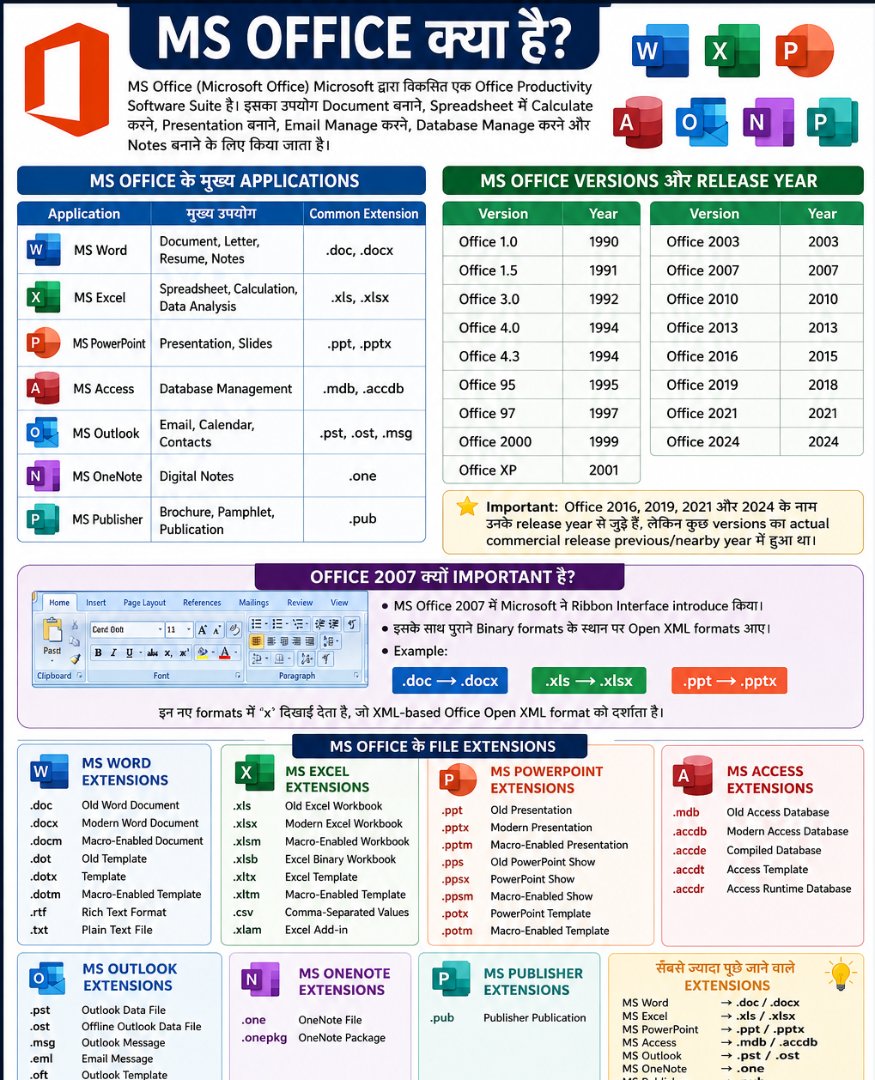
MS Word (Microsoft Word) Microsoft द्वारा developed एक Word Processing Software है। इसका उपयोग Document Creation, Editing, Formatting, Printing और Document Management के लिए किया जाता है।
MS Word की मदद से हम Letter, Application, Resume, Report, Project, Notes, Books और अन्य Documents बना सकते हैं। इसमें text formatting के साथ-साथ Tables, Images, Charts, Shapes, Hyperlinks, Header-Footer, Page Numbers, References और Mail Merge जैसी सुविधाएँ भी उपलब्ध हैं।
MS Word की modern file extension .docx है।
MS Word के प्रमुख उपयोग
- Document बनाना और Edit करना
- Text Formatting करना
- Tables बनाना
- Images और Shapes insert करना
- Page Layout तैयार करना
- Header और Footer लगाना
- Page Number डालना
- Spelling और Grammar check करना
- Find और Replace करना
- Mail Merge करना
- Document को Print करना
- PDF के रूप में Save/Export करना
MS Word का Interface
MS Word के मुख्य interface components को इस प्रकार समझ सकते हैं:
- Title Bar
- Quick Access Toolbar
- File Tab
- Ribbon
- Tabs
- Groups
- Document Area
- Ruler
- Scroll Bar
- Status Bar
- Zoom Slider
Title Bar
Title Bar window के सबसे ऊपर होती है। इसमें वर्तमान document का नाम और Microsoft Word का नाम दिखाई देता है।
Quick Access Toolbar
इसमें frequently used commands रखे जा सकते हैं।
Default रूप से इसमें जैसे:
- Save
- Undo
- Redo
जैसे commands मिल सकते हैं।
Ribbon
Ribbon में MS Word के commands को अलग-अलग Tabs और Groups में organize किया जाता है।
उदाहरण:
Home → Clipboard, Font, Paragraph, Styles
MS Word के सभी Important Menus / Tabs
Modern MS Word में version के अनुसार Tabs में थोड़ा difference हो सकता है। सामान्यतः मुख्य Tabs हैं:
- File
- Home
- Insert
- Draw
- Design
- Layout
- References
- Mailings
- Review
- View
- Help
कुछ contextual Tabs तभी दिखाई देते हैं जब आप कोई specific object जैसे Table, Picture या Shape select करते हैं।
1. File Menu
File Tab का उपयोग document और file से संबंधित operations के लिए किया जाता है।
इसके प्रमुख options हैं:
- New
- Open
- Info
- Save
- Save As
- Share
- Export
- Close
- Account
- Options
New
नया document create करने के लिए।
Shortcut: Ctrl + N
Open
पहले से मौजूद document को open करने के लिए।
Shortcut: Ctrl + O
Save
Document में किए गए changes को save करने के लिए।
Shortcut: Ctrl + S
Save As
Document को किसी दूसरे नाम, location या format में save करने के लिए।
Shortcut: F12 या कुछ versions में Save As के लिए अन्य shortcut उपलब्ध हो सकता है।
Document को print करने के लिए।
Shortcut: Ctrl + P
Export
Document को दूसरे format, जैसे PDF, में export करने के लिए उपयोग किया जा सकता है।
Close
Current document को बंद करने के लिए।
2. Home Tab
Home Tab MS Word का सबसे ज्यादा उपयोग होने वाला Tab है।
इसमें मुख्यतः ये Groups होते हैं:
- Clipboard
- Font
- Paragraph
- Styles
- Editing
Clipboard Group
Clipboard में मुख्य commands:
- Cut
- Copy
- Paste
- Format Painter
Cut
Selected text/object को हटाकर Clipboard में रखने के लिए।
Shortcut: Ctrl + X
Copy
Selected content की copy बनाने के लिए।
Shortcut: Ctrl + C
Paste
Clipboard में मौजूद content को document में insert करने के लिए।
Shortcut: Ctrl + V
Format Painter
एक text की formatting को दूसरे text पर apply करने के लिए।
Font Group
Font Group का उपयोग text की appearance बदलने के लिए होता है।
मुख्य options:
- Font Name
- Font Size
- Bold
- Italic
- Underline
- Strikethrough
- Subscript
- Superscript
- Text Highlight
- Font Color
- Change Case
Bold
Text को bold करने के लिए।
Shortcut: Ctrl + B
Italic
Text को italic करने के लिए।
Shortcut: Ctrl + I
Underline
Text के नीचे line लगाने के लिए।
Shortcut: Ctrl + U
Superscript
Text को baseline के ऊपर छोटा करके दिखाने के लिए।
Example:
X²
Subscript
Text को baseline के नीचे छोटा करके दिखाने के लिए।
Example:
H₂O
Paragraph Group
Paragraph Group में text alignment और paragraph formatting के commands मिलते हैं।
मुख्य commands:
- Bullets
- Numbering
- Multilevel List
- Align Left
- Center
- Align Right
- Justify
- Line and Paragraph Spacing
- Shading
- Borders
- Increase/Decrease Indent
Alignment
MS Word में मुख्यतः चार प्रकार के alignment होते हैं:
| Alignment | Shortcut |
|---|---|
| Align Left | Ctrl + L |
| Center | Ctrl + E |
| Align Right | Ctrl + R |
| Justify | Ctrl + J |
Justify
Text को left और right दोनों margins के साथ align करने के लिए Justify का उपयोग किया जाता है।
Styles Group
Styles का उपयोग document में predefined formatting apply करने के लिए किया जाता है।
Common Styles:
- Normal
- No Spacing
- Heading 1
- Heading 2
- Heading 3
- Title
- Subtitle
Styles का उपयोग बड़े documents में consistency बनाए रखने के लिए बहुत useful है।
Editing Group
Editing Group में मुख्य commands:
- Find
- Replace
- Select
Find
Document में किसी word या phrase को search करने के लिए।
Shortcut: Ctrl + F
Replace
एक word को दूसरे word से replace करने के लिए।
Shortcut: Ctrl + H
Select All
पूरे document को select करने के लिए।
Shortcut: Ctrl + A
3. Insert Tab
Insert Tab का उपयोग document में अलग-अलग objects और elements insert करने के लिए किया जाता है।
इसके प्रमुख Groups:
- Pages
- Tables
- Illustrations
- Links
- Comments
- Header & Footer
- Text
- Symbols
Pages Group
Cover Page
Document में ready-made cover page insert कर सकते हैं।
Blank Page
एक blank page insert करता है।
Page Break
Current page को end करके next page से content शुरू करता है।
Shortcut: Ctrl + Enter
Tables Group
Table में data को rows और columns में organize किया जाता है।
उदाहरण:
| Name | Marks |
|---|---|
| Ravi | 80 |
| Mohan | 75 |
Illustrations Group
इसमें document में visual elements insert किए जा सकते हैं।
मुख्य options:
- Pictures
- Shapes
- Icons
- SmartArt
- Chart
- Screenshot
Pictures
Computer या available source से image insert करने के लिए।
Shapes
Rectangle, Circle, Arrow आदि shapes insert करने के लिए।
SmartArt
Information को graphical तरीके से represent करने के लिए।
Chart
Data को graphical form में display करने के लिए।
Common charts:
- Column
- Bar
- Line
- Pie
- Area
Links Group
इसमें:
- Link/Hyperlink
- Bookmark
- Cross-reference
जैसे options मिलते हैं।
Hyperlink
किसी webpage, file, email address या document location से link करने के लिए।
Shortcut: Ctrl + K
Header & Footer
Header
Page के top area में information डालने के लिए।
Footer
Page के bottom area में information डालने के लिए।
इनमें अक्सर:
- Page Number
- Document Title
- Date
- Author
जैसी information दी जाती है।
Text Group
इसमें विभिन्न text-related elements insert किए जा सकते हैं:
- Text Box
- WordArt
- Date & Time
- Object
- Signature Line
WordArt
Decorative या stylized text बनाने के लिए।
Symbols Group
इसमें:
- Equation
- Symbol
जैसे options होते हैं।
Equation
Mathematical equations insert करने के लिए।
4. Draw Tab
कुछ modern versions में Draw Tab उपलब्ध होता है।
इसका उपयोग:
- Pen
- Highlighter
- Drawing
- Ink
- Handwriting
के लिए किया जाता है।
यह विशेष रूप से touchscreen और stylus devices पर useful है।
5. Design Tab
Design Tab document की overall appearance और formatting के लिए उपयोग किया जाता है।
इसके प्रमुख options:
- Themes
- Colors
- Fonts
- Paragraph Spacing
- Effects
- Watermark
- Page Color
- Page Borders
Themes
पूरे document की coordinated design apply करने के लिए।
Watermark
Page के background में हल्का text/image लगाने के लिए।
Example:
CONFIDENTIAL
Page Color
Page का background color बदलने के लिए।
Page Borders
Page के चारों ओर border लगाने के लिए।
6. Layout Tab
Layout Tab document के page structure और paragraph positioning को control करता है।
मुख्य Groups:
- Page Setup
- Paragraph
- Arrange
Page Setup
मुख्य options:
- Margins
- Orientation
- Size
- Columns
- Breaks
- Line Numbers
- Hyphenation
Margins
Page के चारों तरफ खाली space को control करता है।
चार major margins:
- Top
- Bottom
- Left
- Right
Orientation
दो प्रकार की होती है:
Portrait
और
Landscape
Size
Page का paper size select करने के लिए।
Common size:
A4
Columns
Text को multiple columns में divide करने के लिए।
Newspaper-style documents में इसका उपयोग किया जाता है।
Arrange Group
जब picture, shape या object select किया जाता है, तब Arrange-related options useful होते हैं।
इनमें:
- Position
- Wrap Text
- Bring Forward
- Send Backward
- Align
- Group
- Rotate
जैसे commands मिल सकते हैं।
Wrap Text
Image या object के आसपास text किस तरह दिखाई देगा, इसे control करता है।
7. References Tab
References Tab academic, research और long documents के लिए बहुत important है।
मुख्य options:
- Table of Contents
- Footnotes
- Citations & Bibliography
- Captions
- Index
- Table of Authorities
Table of Contents
Document की headings के आधार पर automatic Table of Contents (TOC) create किया जा सकता है।
इसके लिए Heading Styles का सही उपयोग करना important है।
Footnote
Page के bottom में additional information/reference देने के लिए।
Citation
Document में किसी source को reference करने के लिए।
Bibliography
Document में use किए गए sources की list बनाने के लिए।
Caption
Picture, Table या Figure को label करने के लिए।
8. Mailings Tab
Mailings Tab का सबसे important feature Mail Merge है।
इसके मुख्य options:
- Envelopes
- Labels
- Start Mail Merge
- Select Recipients
- Edit Recipient List
- Insert Merge Field
- Preview Results
- Finish & Merge
Mail Merge क्या है?
Mail Merge की मदद से एक ही format का document कई अलग-अलग recipients के लिए automatically तैयार किया जा सकता है।
उदाहरण:
एक company को 500 employees को अलग-अलग नाम के साथ letter भेजना है।
एक common template बनाया जाएगा और employee data source से:
- Name
- Address
- Employee ID
जैसी information automatically insert की जा सकती है।
Exam Point: Mail Merge → Mailings Tab
9. Review Tab
Review Tab document की checking, collaboration और protection के लिए important है।
मुख्य features:
- Spelling & Grammar
- Editor
- Thesaurus
- Word Count
- Comments
- Track Changes
- Compare
- Protect
Spelling & Grammar
Document में spelling और grammar errors identify करने में मदद करता है।
Thesaurus
Similar meaning वाले words यानी Synonyms खोजने के लिए।
Word Count
Document में:
- Words
- Characters
- Pages
- Paragraphs
आदि की count देखने के लिए।
Comments
Document में किसी specific text पर comment या feedback देने के लिए।
Track Changes
Document में किए गए changes को track करने के लिए।
यह collaborative editing में बहुत useful है।
10. View Tab
View Tab का उपयोग document को अलग-अलग तरीके से देखने और workspace को customize करने के लिए किया जाता है।
मुख्य options:
- Read Mode
- Print Layout
- Web Layout
- Navigation Pane
- Ruler
- Gridlines
- Zoom
- Window
- Macros
Read Mode
Document को reading के लिए optimized तरीके से देखने में मदद करता है।
Print Layout
Document print होने पर जैसा दिखाई देगा, वैसा view देता है।
Web Layout
Document को web-page style में दिखाता है।
Navigation Pane
Document में headings और search results के माध्यम से जल्दी navigate करने के लिए।
Zoom
Document को बड़ा या छोटा करके देखने के लिए।
11. Help Tab
Help Tab या Help facility का उपयोग MS Word से संबंधित सहायता और information प्राप्त करने के लिए किया जाता है।
इसके माध्यम से:
- Help Search
- Tutorials
- Support information
आदि प्राप्त किए जा सकते हैं।
Contextual Tabs क्या हैं?
कुछ Tabs सामान्य रूप से दिखाई नहीं देते। वे तभी दिखाई देते हैं जब कोई particular object select किया जाता है।
उदाहरण:
Picture Select करने पर
Picture-related formatting options दिखाई दे सकते हैं।
Table Select करने पर
Table Design और Layout जैसे options दिखाई दे सकते हैं।
Shape Select करने पर
Shape Format जैसे options दिखाई दे सकते हैं।
इस प्रकार के Tabs को Contextual Tabs कहा जाता है।
MS Word के Important Shortcut Keys
| Shortcut | Function |
|---|---|
Ctrl + N |
New Document |
Ctrl + O |
Open |
Ctrl + S |
Save |
Ctrl + P |
|
Ctrl + X |
Cut |
Ctrl + C |
Copy |
Ctrl + V |
Paste |
Ctrl + Z |
Undo |
Ctrl + Y |
Redo |
Ctrl + A |
Select All |
Ctrl + F |
Find |
Ctrl + H |
Replace |
Ctrl + B |
Bold |
Ctrl + I |
Italic |
Ctrl + U |
Underline |
Ctrl + L |
Align Left |
Ctrl + E |
Center |
Ctrl + R |
Align Right |
Ctrl + J |
Justify |
Ctrl + K |
Insert Hyperlink |
Ctrl + Enter |
Page Break |
Ctrl + Home |
Document के beginning पर |
Ctrl + End |
Document के end पर |
MS Word की File Extensions
| Extension | Description |
|---|---|
.doc |
Old Word Document |
.docx |
Modern Word Document |
.docm |
Macro-Enabled Word Document |
.dot |
Old Word Template |
.dotx |
Word Template |
.dotm |
Macro-Enabled Template |
.rtf |
Rich Text Format |
.txt |
Plain Text |
सबसे Important
.docx → Modern MS Word Document
.docm → Macro-Enabled Word Document
.dotx → Word Template
.dotm → Macro-Enabled Word Template
MS Word के Important Exam Questions
MS Word किस प्रकार का software है?
Word Processing Software
MS Word किस company का product है?
Microsoft
Modern MS Word की default file extension क्या है?
.docx
MS Word में Mail Merge किस Tab में होता है?
Mailings Tab
Table of Contents किस Tab में मिलता है?
References Tab
Spelling & Grammar किस Tab में मिलता है?
Review Tab
Page Orientation किस Tab में होती है?
Layout Tab
Watermark किस Tab में मिलता है?
Design Tab
Find command की shortcut key क्या है?
Ctrl + F
Replace command की shortcut key क्या है?
Ctrl + H
Print की shortcut key क्या है?
Ctrl + P
Hyperlink की shortcut key क्या है?
Ctrl + K
Page Break की shortcut key क्या है?
Ctrl + Enter
MS Word के Advantages
MS Word का सबसे बड़ा advantage यह है कि इसमें document creation से लेकर formatting, reviewing और printing तक लगभग सभी आवश्यक features एक ही application में मिल जाते हैं।
इसके प्रमुख advantages हैं:
- Easy to use interface
- Professional document formatting
- Templates
- Tables और Images support
- Spell Check
- Grammar Check
- Mail Merge
- Collaboration
- Track Changes
- PDF Export
- Printing Support
MS Word और Word Processor में Difference
Word Processor एक software category है, जबकि MS Word उस category का एक popular software है।
उदाहरण:
Word Processor → Category
MS Word → Software
Quick Revision: MS Word के Menus
| Tab/Menu | मुख्य काम |
|---|---|
| File | File Management |
| Home | Text Formatting |
| Insert | Objects Insert करना |
| Draw | Drawing/Ink |
| Design | Document Design |
| Layout | Page Setup |
| References | TOC, Citation, Footnote |
| Mailings | Mail Merge |
| Review | Checking & Reviewing |
| View | Document View |
| Help | Help & Support |
MS Word FAQ
1. MS Word क्या है?
MS Word Microsoft का Word Processing Software है जिसका उपयोग documents create, edit, format और print करने के लिए किया जाता है।
2. MS Word की modern file extension क्या है?
MS Word की modern default file extension .docx है।
3. MS Word में Mail Merge किसके लिए उपयोग होता है?
Mail Merge का उपयोग एक common document को अलग-अलग recipients की information के साथ multiple documents/letters के रूप में तैयार करने के लिए किया जाता है।
4. MS Word में Table of Contents कहाँ से बनाया जाता है?
References Tab के अंतर्गत Table of Contents option से।
5. MS Word में Page Orientation कहाँ से बदलते हैं?
Layout Tab → Orientation से।
6. MS Word में Watermark कहाँ से लगाया जाता है?
Design Tab → Watermark से।
7. MS Word में Spelling और Grammar check किस Tab में होता है?
Review Tab में।
8. MS Word में Find की shortcut key क्या है?
Ctrl + F
9. MS Word में Replace की shortcut key क्या है?
Ctrl + H
10. MS Word में Print की shortcut key क्या है?
Ctrl + P
11. MS Word में Hyperlink की shortcut key क्या है?
Ctrl + K
12. MS Word में Page Break की shortcut key क्या है?
Ctrl + Enter
13. MS Word में Bold की shortcut key क्या है?
Ctrl + B
14. MS Word में Justify की shortcut key क्या है?
Ctrl + J
15. MS Word में Track Changes का क्या उपयोग है?
Track Changes document में किए गए additions, deletions और formatting changes को track करने के लिए उपयोग किया जाता है।
निष्कर्ष
MS Word एक powerful Word Processing Software है, जिसका उपयोग simple text document से लेकर professional reports और academic documents तक बनाने के लिए किया जाता है। इसके Home, Insert, Design, Layout, References, Mailings, Review और View Tabs को समझना Computer exams और practical work दोनों के लिए महत्वपूर्ण है।
Exam की दृष्टि से Mail Merge → Mailings, Table of Contents → References, Watermark → Design, Orientation → Layout और Spelling & Grammar → Review जैसे combinations विशेष रूप से याद रखें।
विज्ञापन / Advertisement
💬 Leave a Comment & Rating