विज्ञापन / Advertisement
Excel Cell References: Relative, Absolute, Mixed और 3D Reference
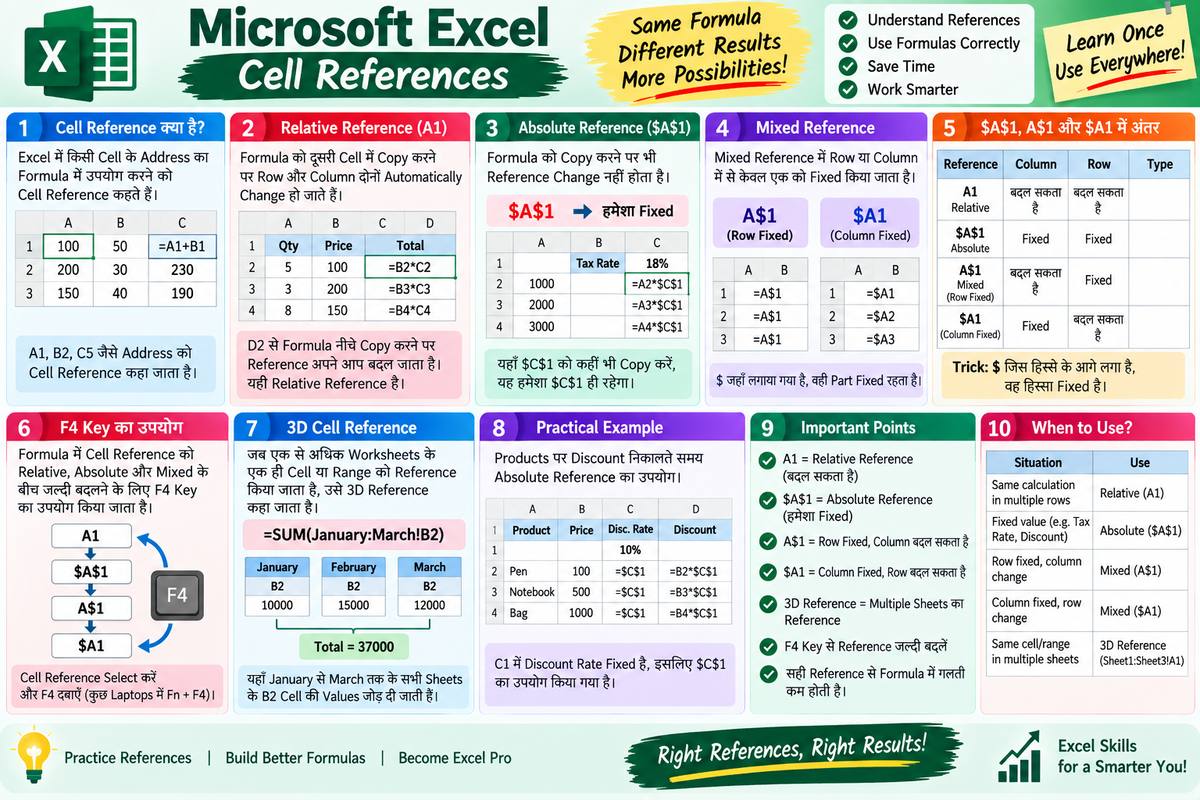
Microsoft Excel में Cell References क्या हैं? Relative, Absolute, Mixed और 3D Reference
Microsoft Excel में Formula बनाते समय हम अक्सर किसी Cell को Reference करते हैं। उदाहरण के लिए:
=A1+B1
यहां A1 और B1 Cell References हैं।
Cell Reference का मतलब है कि Formula में हम Excel को बता रहे हैं कि Calculation के लिए किस Cell की Value का उपयोग करना है।
Excel में Cell References को सही तरीके से समझना बहुत जरूरी है, क्योंकि Formula को Copy या Drag करने पर References बदल सकते हैं। कई बार हमें Reference को बदलने से रोकना होता है और कई बार केवल Row या Column को Fixed रखना होता है।
Excel में मुख्य रूप से ये Cell References महत्वपूर्ण हैं:
-
Relative Reference
-
Absolute Reference
-
Mixed Reference
-
3D Cell Reference
आइए इन्हें आसान उदाहरणों से समझते हैं।
1. Cell Reference क्या है?
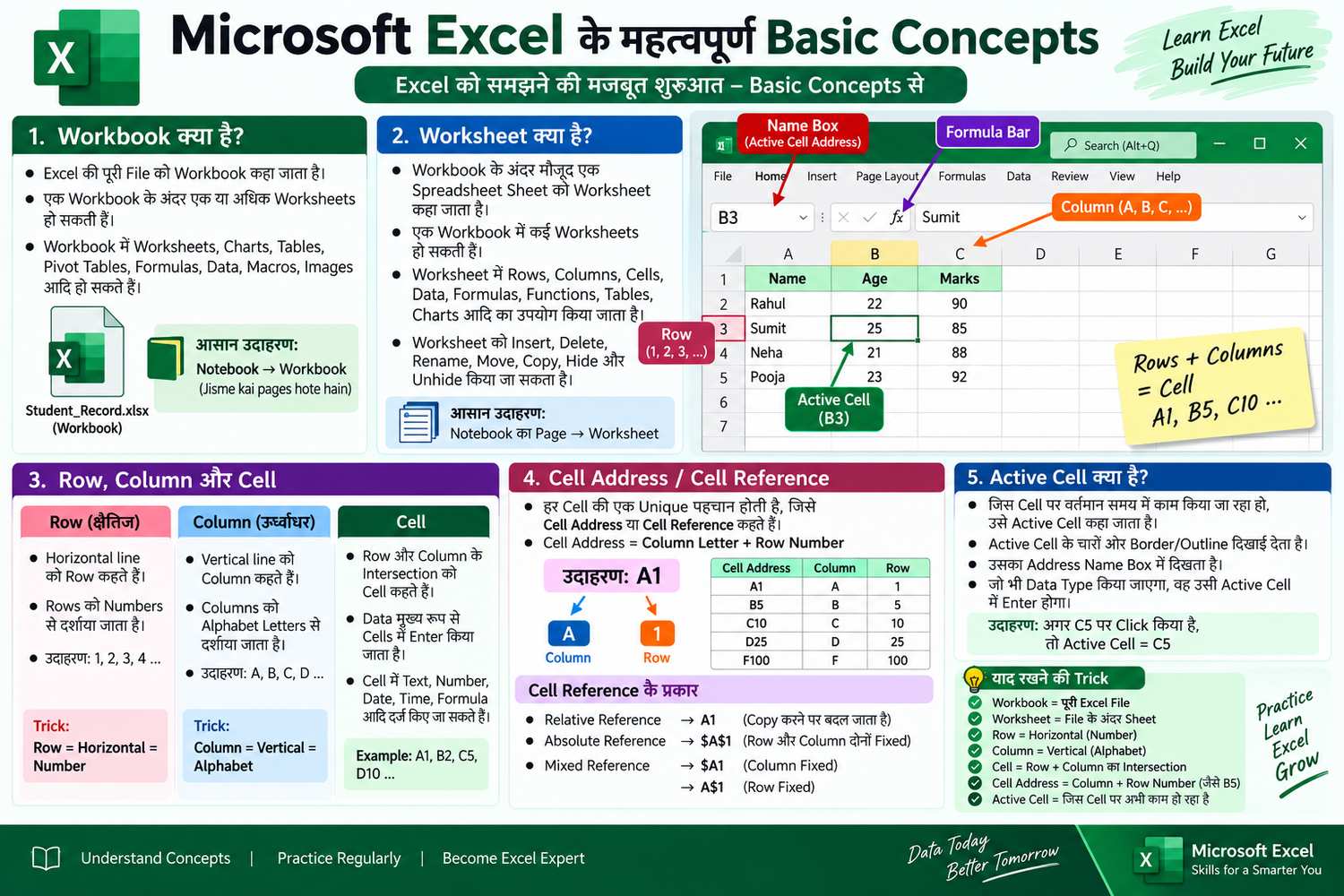
Excel Worksheet में हर Cell का एक Address होता है।
उदाहरण:
-
A1
-
B2
-
C5
-
D10
यहां:
-
A, B, C, D = Column
-
1, 2, 5, 10 = Row
इसलिए B5 का मतलब है Column B और Row 5 का Cell।
जब हम Formula में किसी Cell Address का उपयोग करते हैं, तो उसे Cell Reference कहा जाता है।
Example
अगर A1 में:
100
और B1 में:
50
है, तो:
=A1+B1
Formula दोनों Cells की Values को जोड़ता है।
Result:
150
2. Relative Reference
Relative Reference Excel में सबसे सामान्य प्रकार का Cell Reference है।
इसमें Formula को दूसरी Cell में Copy करने पर Row और Column Reference Automatically Change हो सकता है।
Example
मान लीजिए:
| A | B | C |
|---|---|---|
| Product | Price | Quantity |
| Pen | 20 | 5 |
अगर D2 में Formula है:
=B2*C2
तो Excel Price और Quantity को Multiply करके Total निकाल सकता है।
अब अगर इस Formula को D3 में Copy किया जाए, तो Reference Automatically बदलकर:
=B3*C3
हो सकता है।
यही Relative Reference की खासियत है।
Relative Reference का Example
D2:
=B2*C2
D3 में Copy:
=B3*C3
D4 में Copy:
=B4*C4
Formula अपने नए Location के अनुसार References को Adjust करता है।
Relative Reference का उपयोग कब करें?
जब आप एक ही प्रकार की Calculation को कई Rows या Columns में Apply करना चाहते हैं, तब Relative Reference बहुत उपयोगी होता है।
3. Absolute Reference
Absolute Reference में Cell Reference को Fixed किया जाता है, ताकि Formula को दूसरी जगह Copy करने पर Reference Change न हो।
Absolute Reference में Column और Row दोनों के आगे $ Symbol लगाया जाता है।
Syntax
$A$1
यहां:
-
$A= Column A Fixed -
$1= Row 1 Fixed
इसलिए Formula को कहीं भी Copy करने पर $A$1 वही रहेगा।
Absolute Reference का Example
मान लीजिए A2:A5 में Prices हैं और B1 में Tax Rate:
B1 = 18%
अब आपको हर Product की Price पर 18% Tax निकालना है।
Formula:
=A2*$B$1
यहां:
-
A2= Relative Reference -
$B$1= Absolute Reference
अब Formula को नीचे Copy करने पर:
=A3*$B$1
=A4*$B$1
=A5*$B$1
हो सकता है।
लेकिन $B$1 हर Formula में Fixed रहेगा।
4. $A$1 क्या है?
$A$1
एक Absolute Cell Reference है।
इसमें:
-
Column A Fixed है।
-
Row 1 Fixed है।
इसलिए Formula को Copy करने पर न तो Column बदलेगा और न ही Row।
Example
अगर Formula है:
=A2*$A$1
और इसे नीचे Copy करते हैं, तो:
=A3*$A$1
होगा।
यहां A2 बदलकर A3 हो गया, लेकिन $A$1 नहीं बदला।
5. Mixed Reference
Mixed Reference में Row या Column में से केवल एक को Fixed किया जाता है।
इसलिए Mixed Reference के दो मुख्य प्रकार हैं:
1. Column Fixed
$A1
2. Row Fixed
A$1
यही कारण है कि Mixed Reference को समझते समय $ Symbol की Position पर ध्यान देना बहुत जरूरी है।
6. A$1 क्या है?
A$1
एक Mixed Reference है।
इसमें:
-
Column A Relative है।
-
Row 1 Absolute/Fixed है।
अगर Formula को नीचे Copy किया जाए, तो Row 1 Fixed रहेगी।
लेकिन अगर Formula को दूसरे Column में Copy किया जाए, तो Column बदल सकता है।
Example
मान लीजिए:
=A$1
इसे नीचे Copy करने पर यह वही:
=A$1
रहेगा।
लेकिन अगर इसे एक Column दाईं तरफ Copy किया जाए, तो यह:
=B$1
हो सकता है।
इसलिए:
A$1 = Row Fixed, Column Relative
7. $A1 क्या है?
$A1
भी एक Mixed Reference है।
इसमें:
-
Column A Fixed है।
-
Row 1 Relative है।
अगर Formula को नीचे Copy किया जाए, तो Row बदल सकती है।
लेकिन Formula को दूसरे Column में Copy करने पर Column A Fixed रहेगा।
Example
Formula:
=$A1
नीचे Copy करने पर:
=$A2
हो सकता है।
लेकिन इसे दाईं तरफ Copy करने पर:
=$A1
ही रहेगा।
इसलिए:
$A1 = Column Fixed, Row Relative
8. Relative, Absolute और Mixed Reference में अंतर
इन तीनों References को एक नजर में समझने के लिए यह Table बहुत उपयोगी है:
| Reference | Column | Row | Type |
|---|---|---|---|
A1 |
बदल सकता है | बदल सकता है | Relative |
$A$1 |
Fixed | Fixed | Absolute |
A$1 |
बदल सकता है | Fixed | Mixed |
$A1 |
Fixed | बदल सकता है | Mixed |
याद रखने की आसान Trick
$ जिस हिस्से के आगे लगा है, वह हिस्सा Fixed है।
उदाहरण:
$A$1
दोनों Fixed।
A$1
केवल Row Fixed।
$A1
केवल Column Fixed।
A1
कुछ भी Fixed नहीं।
9. Formula में Cell Reference का Practical Example
मान लीजिए आपके पास यह Table है:
| Product | Price | Quantity | Total |
|---|---|---|---|
| Pen | 20 | 5 | ? |
| Notebook | 50 | 3 | ? |
| Bag | 800 | 2 | ? |
D2 में Formula:
=B2*C2
यह Relative Reference का उदाहरण है।
अब D2 को नीचे Copy करने पर Excel इसे Automatically:
=B3*C3
और फिर:
=B4*C4
में Adjust कर सकता है।
यह Excel की Formula Copy सुविधा को बहुत शक्तिशाली बनाता है।
10. Absolute Reference का Practical Example
मान लीजिए आपके पास Products की Price है और सभी Products पर एक ही Discount Rate लागू करना है।
| Product | Price | Discount |
|---|---|---|
| Pen | 100 | 10% |
| Notebook | 500 | 10% |
| Bag | 1000 | 10% |
मान लीजिए Discount Rate D1 में रखा गया है:
D1 = 10%
और B2 में Price है।
Discount Amount निकालने के लिए:
=B2*$D$1
यहां $D$1 को Absolute Reference बनाया गया है।
Formula को नीचे Copy करने पर:
=B3*$D$1
=B4*$D$1
हो सकता है।
Discount Rate वाला Cell हमेशा $D$1 ही रहेगा।
11. Mixed Reference का Practical Example
Mixed References खासकर ऐसी Tables में बहुत उपयोगी होते हैं जहां Formula को दाईं तरफ और नीचे दोनों तरफ Copy करना होता है।
मान लीजिए आपके पास एक Multiplication Table है:
| 1 | 2 | 3 | 4 | |
|---|---|---|---|---|
| 1 | ? | ? | ? | ? |
| 2 | ? | ? | ? | ? |
| 3 | ? | ? | ? | ? |
| 4 | ? | ? | ? | ? |
ऐसी स्थिति में Row और Column में से किसी एक को Fixed रखना पड़ सकता है।
उदाहरण:
=$A2*B$1
इस Formula में:
-
$A2= Column A Fixed -
B$1= Row 1 Fixed
इसलिए Formula को पूरे Table में Copy करने पर References जरूरत के अनुसार Adjust हो सकते हैं।
12. F4 Key से Reference बदलना
Excel में Formula लिखते समय Cell Reference को Relative, Absolute और Mixed Reference में बदलने के लिए F4 Key बहुत उपयोगी है।
मान लीजिए Formula में:
A1
Reference है।
Cell Reference को Select करके F4 दबाने पर Reference अलग-अलग Forms में बदल सकता है।
आमतौर पर क्रम इस प्रकार होता है:
A1
$A$1
A$1
$A1
A1
इससे Formula में $ Manually Type करने की जरूरत कम हो जाती है।
Laptop पर
कुछ Laptops में F4 के लिए:
Fn + F4
की जरूरत हो सकती है, यह Keyboard Settings पर निर्भर करता है।
13. 3D Cell Reference क्या है?
जब हम एक ही प्रकार के Cell या Range को एक से अधिक Worksheets में Reference करते हैं, तो इसे 3D Reference कहा जाता है।
यह Multiple Worksheets के Data के साथ काम करते समय बहुत उपयोगी होता है।
Basic Syntax
Sheet1:Sheet3!A1
इसका मतलब है कि Excel Sheet1 से Sheet3 तक के Worksheets में Cell A1 को Reference कर रहा है।
14. 3D Reference का Example
मान लीजिए आपके पास तीन Worksheets हैं:
-
January
-
February
-
March
और प्रत्येक Sheet में B2 Cell में Monthly Sales लिखी है।
अब आप किसी Summary Sheet में तीनों महीनों की Sales जोड़ना चाहते हैं।
Formula इस प्रकार हो सकता है:
=SUM(January:March!B2)
यह Formula January से March तक के सभी Sheets के B2 Cell की Values को जोड़ सकता है।
अगर:
-
January B2 = 10000
-
February B2 = 15000
-
March B2 = 12000
तो Result:
37000
होगा।
15. 3D Reference कब उपयोगी है?
3D References खासकर इन परिस्थितियों में उपयोगी होते हैं:
-
Monthly Reports
-
Yearly Reports
-
Department-wise Data
-
Branch-wise Data
-
Multiple Location Reports
-
Financial Reports
-
Summary Worksheets
उदाहरण के लिए, अगर पूरे साल के लिए हर महीने की अलग Worksheet है, तो एक Summary Sheet में सभी Months का Data Combine करना आसान हो सकता है।
16. 3D Reference बनाते समय ध्यान रखें
3D Reference में Worksheets का Order और Range महत्वपूर्ण होता है।
उदाहरण:
=SUM(January:March!B2)
January से March के बीच आने वाले Worksheets भी Reference में शामिल हो सकते हैं।
इसलिए अगर आप बाद में इन Sheets के बीच कोई नई Worksheet जोड़ते हैं, तो Formula का परिणाम प्रभावित हो सकता है।
इसी तरह, यदि Worksheets को Move या Rename किया जाता है, तो Excel आमतौर पर References को Update करने की कोशिश करता है, लेकिन बड़े Workbooks में References को Check करना अच्छी Practice है।
17. Cell References को याद रखने की आसान Trick
Cell Reference को याद रखने का सबसे आसान तरीका है:
A1
कुछ भी Fixed नहीं
$A$1
Column + Row दोनों Fixed
A$1
केवल Row Fixed
$A1
केवल Column Fixed
इसे इस तरह याद रखें:
जिसके आगे
$लगा है, वह Fixed है।
18. Relative और Absolute Reference में मुख्य अंतर
| Relative Reference | Absolute Reference |
|---|---|
A1 |
$A$1 |
| Copy करने पर बदल सकता है | Copy करने पर नहीं बदलता |
| Dynamic Calculation में उपयोगी | Fixed Value/Cell के लिए उपयोगी |
| Row और Column दोनों Relative | Row और Column दोनों Fixed |
19. कौन-सा Reference कब इस्तेमाल करें?
Relative Reference A1
जब Formula को अलग-अलग Rows या Columns में Copy करना हो और References भी उसी के अनुसार बदलने चाहिए।
Absolute Reference $A$1
जब किसी एक Cell को Formula में हमेशा Fixed रखना हो।
Mixed Reference A$1
जब Row को Fixed रखना हो लेकिन Column को बदलने देना हो।
Mixed Reference $A1
जब Column को Fixed रखना हो लेकिन Row को बदलने देना हो।
3D Reference Sheet1:Sheet3!A1
जब एक ही प्रकार के Cell/Range को कई Worksheets में Reference करना हो।
निष्कर्ष
Excel में Cell References Formula की नींव हैं। अगर आप Formula को सही तरीके से Copy करना और बड़े Data पर Calculation करना चाहते हैं, तो Relative, Absolute और Mixed References को अच्छी तरह समझना बहुत जरूरी है।
Relative Reference A1 Copy करने पर बदल सकता है, जबकि Absolute Reference $A$1 पूरी तरह Fixed रहता है। Mixed References A$1 और $A1 में Row या Column में से केवल एक हिस्सा Fixed रहता है।
वहीं 3D Reference का उपयोग Multiple Worksheets के एक जैसे Cells या Ranges को एक साथ Reference करने के लिए किया जाता है।
इन References की Practice करने के बाद Excel के Advanced Formulas और Functions को समझना काफी आसान हो जाता है।
Frequently Asked Questions (FAQ)
1. Excel में Cell Reference क्या है?
Formula में किसी Cell के Address, जैसे A1, B2 या C5, का उपयोग करने को Cell Reference कहा जाता है।
2. Relative Reference क्या होता है?
Relative Reference जैसे A1 Formula को दूसरी Cell में Copy करने पर Row और Column के अनुसार Automatically Change हो सकता है।
3. Absolute Reference क्या होता है?
Absolute Reference में Row और Column दोनों Fixed रहते हैं। इसका उदाहरण $A$1 है।
4. $A$1 का क्या मतलब है?
$A$1 में Column A और Row 1 दोनों Fixed हैं। Formula को Copy करने पर यह Reference नहीं बदलता।
5. A$1 क्या है?
A$1 एक Mixed Reference है जिसमें Row 1 Fixed है, जबकि Column A Relative है।
6. $A1 क्या है?
$A1 एक Mixed Reference है जिसमें Column A Fixed है, जबकि Row 1 Relative है।
7. Excel में Relative, Absolute और Mixed Reference में क्या अंतर है?
A1 में Row और Column दोनों बदल सकते हैं, $A$1 में दोनों Fixed हैं, जबकि A$1 या $A1 में केवल Row या Column में से एक Fixed होता है।
8. Excel में F4 Key का क्या उपयोग है?
Formula में Cell Reference को Relative, Absolute और Mixed Reference में जल्दी बदलने के लिए F4 Key उपयोगी होती है।
9. 3D Cell Reference क्या है?
जब एक Formula में एक से अधिक Worksheets के समान Cell या Range को Reference किया जाता है, तो उसे 3D Reference कहा जाता है। उदाहरण: =SUM(January:March!B2)
10. Excel में $ Symbol का क्या मतलब है?
Cell Reference में $ जिस Row या Column के आगे लगाया जाता है, उस हिस्से को Fixed कर देता है। उदाहरण: $A1 में Column A Fixed है और A$1 में Row 1 Fixed है।
विज्ञापन / Advertisement
💬 Leave a Comment & Rating